Back to blog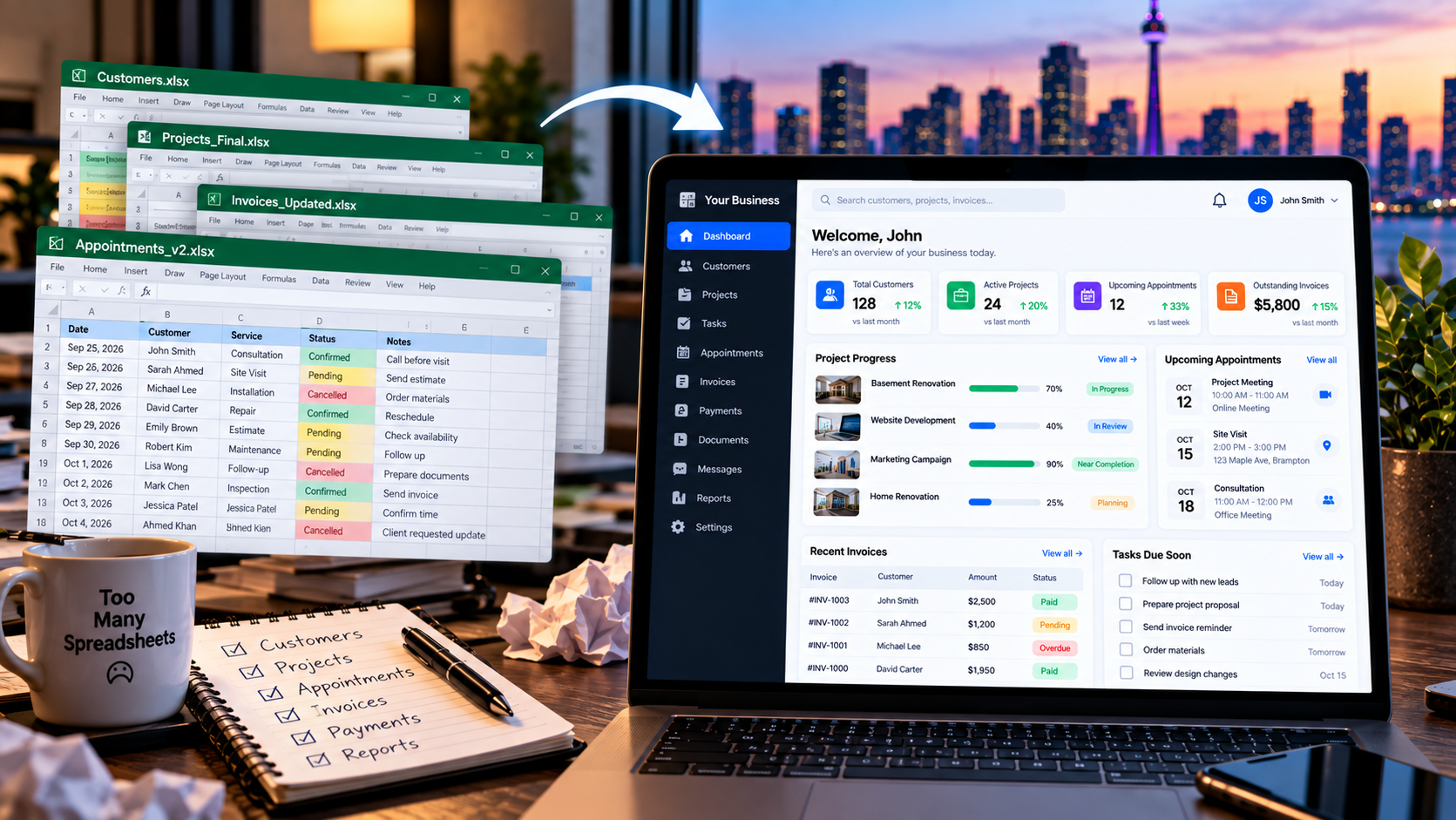
Business Systems9/28/2026
When Should a Business Replace Spreadsheets With Custom Software?
Spreadsheets are useful business tools, but they can become difficult to manage as workflows grow. Learn the signs that your business may need custom software instead.
When Should a Business Replace Spreadsheets With Custom Software?
Spreadsheets are useful business tools.
They are flexible, familiar, relatively inexpensive, and excellent for calculations, analysis, planning, and many day-to-day tasks.
For a small business, a spreadsheet can sometimes be exactly what is needed.
The problem starts when a spreadsheet gradually becomes something much more important.
It may begin as a simple customer list.
Then someone adds sales tracking.
Another person adds appointments.
Someone else adds invoices.
A few formulas are added.
Then conditional formatting.
Then multiple tabs.
Then another spreadsheet is created because someone needs a different view of the same information.
Eventually, the spreadsheet is no longer just a spreadsheet.
It has become part of the system running the business.
That is when it is worth asking:
Has our business outgrown the spreadsheet?
Spreadsheets Are Not the Problem
The goal should not be to eliminate spreadsheets.
Excel and Google Sheets remain useful for many business tasks.
A spreadsheet can be a good choice when:
- One person manages the information
- The data volume is manageable
- The process is simple
- The workflow changes frequently
- The spreadsheet is mainly used for analysis
- There are no complicated permissions
- Errors do not create significant operational problems
- The data volume is manageable
- The process is simple
- The workflow changes frequently
- The spreadsheet is mainly used for analysis
- There are no complicated permissions
- Errors do not create significant operational problems
If a spreadsheet is working well, there may be no reason to replace it.
The question is not:
"Can software do this?"
Almost always, the answer is yes.
The better question is:
"Has this particular workflow become difficult or risky to manage as a spreadsheet?"
1. Multiple People Need to Work With the Same Data
One of the first warning signs is when several employees depend on the same spreadsheet.
For example:
- Sales updates customers
- Operations updates job status
- Finance updates payments
- Management reviews reports
- Operations updates job status
- Finance updates payments
- Management reviews reports
Now multiple people need access to the same information.
The problem is not simply that several people are editing a file.
The bigger issue is controlling who can see, change, approve, or manage different parts of the workflow.
A dedicated business application can provide different screens and permissions for different roles.
For example:
Sales → Leads and Customers
Operations → Projects and Tasks
Finance → Invoices and Payments
Management → Dashboard and Reports
Everyone can work with the same underlying information without necessarily seeing or editing everything.
2. You Have Multiple Versions of the Same Spreadsheet
Another warning sign is the appearance of files such as:
- Customers-Final.xlsx
- Customers-Final-Updated.xlsx
- Customers-Final-Updated-2.xlsx
- Customers-September.xlsx
- Customers-Final-Updated.xlsx
- Customers-Final-Updated-2.xlsx
- Customers-September.xlsx
When people need to ask:
"Which file is the latest one?"
the process has already become harder to control.
A shared system can provide one central source of data rather than relying on people to maintain multiple copies.
This does not mean every spreadsheet with multiple versions needs custom software.
But if the conflicting versions affect important business operations, it is worth reviewing the workflow.
3. Employees Keep Copying the Same Information
Manual data entry is another strong signal.
For example:
Website Form → Spreadsheet → CRM → Invoice → Email
If employees repeatedly copy customer information from one place to another, the process takes time and creates additional opportunities for mistakes.
A connected system can potentially allow information to move between workflow stages automatically.
For example:
New Lead → Customer → Quote → Project → Invoice → Payment
The exact workflow depends on the business.
The important point is that the same information does not have to be manually recreated at every stage.
4. Follow-Ups Depend on Someone Remembering
Spreadsheets are good at storing information.
They are not always good at making sure people act on that information.
Consider a spreadsheet containing:
| Customer | Status | Follow-Up Date |
| --- | --- | --- |
| Customer A | Quote Sent | October 2 |
| Customer B | New Lead | October 3 |
| Customer C | Waiting | October 4 |
| --- | --- | --- |
| Customer A | Quote Sent | October 2 |
| Customer B | New Lead | October 3 |
| Customer C | Waiting | October 4 |
Someone still needs to remember to check the sheet.
A workflow system can potentially turn those dates and statuses into actions.
For example:
New Lead → Assign Owner → Follow-Up Reminder → Contact Customer → Update Status
This makes the workflow more visible and repeatable.
5. Important Business Rules Live Inside Formulas
A spreadsheet can contain a surprising amount of business logic.
For example:
- Pricing calculations
- Discounts
- Inventory rules
- Approval thresholds
- Commission calculations
- Status formulas
- Scheduling calculations
- Reporting logic
- Discounts
- Inventory rules
- Approval thresholds
- Commission calculations
- Status formulas
- Scheduling calculations
- Reporting logic
This can work well when the workbook is carefully maintained.
The risk increases when only one person understands how the formulas work.
If employees need to ask:
"Don't change that cell because it will break the calculation."
the spreadsheet may be carrying business rules that would be better represented in a controlled application.
A custom system can move important business rules into application logic with controlled inputs and validations.
6. Errors Are Becoming Expensive
Not every spreadsheet mistake is serious.
A typo in a personal planning sheet may not matter.
A wrong inventory quantity, invoice amount, customer status, or project cost can be different.
Consider a workflow where one incorrect value causes:
Incorrect Data → Incorrect Report → Incorrect Decision
If errors are becoming frequent or expensive to detect and correct, it may be time to examine whether the workflow needs stronger validation.
A business application can enforce required fields, allowed values, calculations, and other rules at the point where information is entered.
7. Reporting Takes Hours to Prepare
Another common warning sign is manual reporting.
For example, every Monday someone may need to:
1. Open several spreadsheets
2. Export data
3. Copy information
4. Clean the data
5. Remove duplicates
6. Fix formulas
7. Create charts
8. Send the report
2. Export data
3. Copy information
4. Clean the data
5. Remove duplicates
6. Fix formulas
7. Create charts
8. Send the report
If the process takes hours every week, the reporting workflow itself may be the problem.
A connected business system can potentially generate dashboards and reports directly from the underlying data.
Instead of building the report manually:
Open Dashboard → Select Date Range → Review Results
The exact solution depends on the reporting requirements.
8. You Need Different Views of the Same Information
A spreadsheet often becomes complicated when different people need different views of the same data.
For example, the same project information may need to appear as:
Employee View
Tasks assigned to the employee.
Manager View
Project progress and team workload.
Finance View
Project value, invoices, and payments.
Customer View
Project status and documents.
Creating separate spreadsheets for every audience can create duplicate data and additional maintenance.
A business application can store the information once and present different views based on the user's role.
9. Permissions Have Become Important
A spreadsheet may work well when everyone can access everything.
That changes when the business starts handling information that should have controlled access.
For example:
- Employee information
- Customer information
- Financial records
- Internal notes
- Pricing
- Management reports
- Business documents
- Customer information
- Financial records
- Internal notes
- Pricing
- Management reports
- Business documents
You may need one employee to edit appointments but not financial information.
Another employee may need access to invoices but not internal management notes.
Role-based permissions can make these boundaries easier to manage.
10. Your Spreadsheet Has Become the Main Workflow
This is one of the strongest signals.
If employees open the same spreadsheet every morning to determine:
- What needs to happen
- Who should do it
- What is overdue
- Which customer needs a call
- Which project is delayed
- Which invoice needs attention
- Who should do it
- What is overdue
- Which customer needs a call
- Which project is delayed
- Which invoice needs attention
then the spreadsheet is no longer simply storing information.
It is helping run the business.
At that point, it is worth mapping the workflow and asking whether a dedicated system would make the process more reliable.
11. Customers Need Access to the Information
A spreadsheet becomes more difficult to use when customers need direct access.
For example, customers may need to:
- View project status
- Upload documents
- Approve work
- View appointments
- Check invoices
- Make payments
- Submit requests
- Upload documents
- Approve work
- View appointments
- Check invoices
- Make payments
- Submit requests
Sharing a spreadsheet with customers is rarely the ideal long-term customer experience.
A customer portal or web application can provide a controlled interface instead.
You can read more about this in our guide:
12. The Business Depends on One Spreadsheet Expert
Another warning sign is when only one person knows how everything works.
Maybe one employee knows:
- Which tab to update
- Which formulas are important
- Which cells should never be changed
- How to create the monthly report
- How to fix broken formulas
- Which filters need to be applied
- Which formulas are important
- Which cells should never be changed
- How to create the monthly report
- How to fix broken formulas
- Which filters need to be applied
If that person is away, the process becomes difficult.
This is an operational dependency.
A well-designed system should make important business processes easier for the team to understand and operate without relying on one person's memory.
13. Your Spreadsheet Is Getting Hard to Use
Size alone does not mean a spreadsheet needs to become software.
But usability problems can be a signal.
For example:
- Too many tabs
- Too many columns
- Complicated formulas
- Difficult filtering
- Repeated manual cleanup
- Slow reporting
- Hard-to-find records
- Multiple versions
- Frequent accidental changes
- Too many columns
- Complicated formulas
- Difficult filtering
- Repeated manual cleanup
- Slow reporting
- Hard-to-find records
- Multiple versions
- Frequent accidental changes
If employees spend more time managing the spreadsheet than using the information inside it, the workflow deserves closer attention.
14. You Need Integrations
A spreadsheet may eventually become the middle point between several systems.
For example:
Website → Spreadsheet → Accounting
or:
CRM → Spreadsheet → Project Management
or:
E-commerce → Spreadsheet → Inventory
If employees manually move information between these systems, integration may reduce repetitive work.
A custom application can potentially connect APIs and business systems so information flows between the relevant stages.
However, custom development is not always necessary.
If an existing platform already provides the required integration, using that platform may be simpler.
15. You Need a Real-Time Business Dashboard
Management often wants quick answers to questions such as:
How many leads do we have?
How much revenue was generated this month?
Which invoices are outstanding?
How many projects are active?
What appointments are coming up?
Which tasks are overdue?
If answering these questions requires manually updating spreadsheets, a connected business dashboard may be useful.
A dashboard can bring information from the underlying system into one view.
You can learn more in our guide:
When Should You Keep the Spreadsheet?
It is important not to replace a spreadsheet simply because software exists.
Keep using the spreadsheet when:
- The workflow is simple
- One person manages it
- The data is easy to maintain
- Reporting is straightforward
- There are few dependencies
- The process changes frequently
- Errors have limited consequences
- An existing application would add unnecessary complexity
- One person manages it
- The data is easy to maintain
- Reporting is straightforward
- There are few dependencies
- The process changes frequently
- Errors have limited consequences
- An existing application would add unnecessary complexity
For example, a simple monthly planning sheet may never need to become an application.
A spreadsheet used for analysis may be better kept as a spreadsheet.
A small list may not justify software development.
The goal is not to eliminate spreadsheets.
The goal is to use the right tool for the job.
Custom Software vs Existing Business Software
If a spreadsheet has outgrown its purpose, custom software is not automatically the next step.
There are usually three options.
Option 1: Improve the Spreadsheet
You may be able to:
- Clean up the workbook
- Improve formulas
- Add validation
- Use tables
- Improve filters
- Add protected areas
- Automate repetitive tasks
- Improve formulas
- Add validation
- Use tables
- Improve filters
- Add protected areas
- Automate repetitive tasks
This can be enough for some workflows.
Option 2: Use Existing Software
A standard business application may already solve the problem.
For example:
- CRM software for customer management
- Accounting software for invoices
- Scheduling software for appointments
- Project management software for tasks
- Accounting software for invoices
- Scheduling software for appointments
- Project management software for tasks
If an existing platform fits your workflow, there may be little reason to build a custom system.
Option 3: Build Custom Software
Custom software becomes more relevant when:
- Your workflow is unique
- Existing software does not fit
- Multiple systems need to connect
- You need specific roles and permissions
- Customers need a custom portal
- Business rules are specific to your operation
- The workflow is important enough to justify development
- Existing software does not fit
- Multiple systems need to connect
- You need specific roles and permissions
- Customers need a custom portal
- Business rules are specific to your operation
- The workflow is important enough to justify development
The goal should be to build only what the business actually needs.
Do Not Replace Everything at Once
One of the biggest mistakes is trying to turn every spreadsheet into software immediately.
A better approach is to identify the workflow causing the most problems.
For example:
Spreadsheet → Customer Management
might be the first workflow to replace.
Then:
Customer → Quote → Project
could be added later.
Then:
Project → Invoice → Payment
could become another connected workflow.
This creates a more manageable path than attempting to rebuild the entire business at once.
A Practical Spreadsheet Replacement Process
A structured approach can look like this:
Step 1: Map the Current Workflow
Document:
- Who enters information
- What information is entered
- Who uses it next
- Where the data goes
- Where delays happen
- Where mistakes happen
- What information is entered
- Who uses it next
- Where the data goes
- Where delays happen
- Where mistakes happen
Step 2: Identify the Business Rules
Look at:
- Formulas
- Statuses
- Calculations
- Approval rules
- Required fields
- Manual procedures
- Statuses
- Calculations
- Approval rules
- Required fields
- Manual procedures
Do not simply copy the spreadsheet into a new interface.
Understand what the spreadsheet is actually doing.
Step 3: Identify the Core Workflow
Choose the smallest business process that would benefit from a dedicated system.
For example:
Lead → Quote → Customer
rather than trying to build the entire company platform immediately.
Step 4: Define Users and Permissions
Decide:
- Who can view information
- Who can create records
- Who can edit records
- Who can approve actions
- Who can access reports
- Who can create records
- Who can edit records
- Who can approve actions
- Who can access reports
Step 5: Build and Test
The first version should focus on the most important workflow.
Test it with real-world scenarios before expanding the system.
Step 6: Migrate the Useful Data
Not every old spreadsheet row needs to move into the new system.
Clean and validate the information first.
Then migrate the data that is actually needed.
Step 7: Expand Gradually
Once the first workflow works reliably, additional processes can be connected.
This approach can reduce disruption and make it easier for employees to adopt the new system.
A Simple Decision Checklist
Ask these questions about your spreadsheet:
1. Does more than one person depend on it?
2. Are multiple versions being created?
3. Is the same information copied between systems?
4. Are important follow-ups handled manually?
5. Are business rules hidden inside formulas?
6. Are errors becoming expensive?
7. Does reporting require significant manual work?
8. Do different employees need different views?
9. Do you need role-based permissions?
10. Does the spreadsheet drive an important business workflow?
11. Do customers need access to the information?
12. Does the business depend on one spreadsheet expert?
13. Do you need integrations?
14. Would a dashboard provide better visibility?
15. Does existing software already solve the problem?
2. Are multiple versions being created?
3. Is the same information copied between systems?
4. Are important follow-ups handled manually?
5. Are business rules hidden inside formulas?
6. Are errors becoming expensive?
7. Does reporting require significant manual work?
8. Do different employees need different views?
9. Do you need role-based permissions?
10. Does the spreadsheet drive an important business workflow?
11. Do customers need access to the information?
12. Does the business depend on one spreadsheet expert?
13. Do you need integrations?
14. Would a dashboard provide better visibility?
15. Does existing software already solve the problem?
If several of these questions describe your situation, it may be worth reviewing the workflow and comparing spreadsheet improvements, existing software, and custom development.
Final Thoughts
Spreadsheets are not outdated.
They remain valuable tools for analysis, planning, calculations, and many business processes.
The problem starts when a spreadsheet becomes responsible for too much.
If it is controlling workflows, managing multiple users, storing business-critical information, generating reports, handling permissions, and connecting several systems, it may be time to consider a more structured solution.
But the answer does not always have to be custom software.
Sometimes a better spreadsheet is enough.
Sometimes an existing SaaS platform is the right choice.
And sometimes the workflow is unique enough that a custom business system makes sense.
The best decision starts with understanding the workflow rather than choosing technology first.
Lutfur Digital Studio builds custom web applications and business systems for businesses across Canada, including internal tools, dashboards, customer portals, booking systems, workflow automation, and connected business platforms.
Ready to Move Beyond Spreadsheet Workflows?
If your business relies on spreadsheets for an important workflow and the process is becoming difficult to manage, we can map the workflow and identify what a practical software solution could look like.